Tuesday, 23 June 2015

30 drawing apps in 30 days day14 Artset

Artset is the second drawing app @mecurdy uses, and its completely different to inkflow.
Artset is a really full function painting? app... I can't ask Marion how she uses it as she's off for the week, but I reckon it might work well with inkflow as a way of colouring up initial ink sketches, like I used to do inking comics with Manga Studio, and colouring in Photoshop?


I had a go at this last night and it looks ok, though I could have maybe done the initial blackline work better directly in Artset.


So today's challenge is literature.

Artset doesn't have layers, though you can import a picture and paint over it, but there's not separation. It does the usual pinch to zoom, and there's a proper undo button. 
The thing that really distinguishes it is the novel way of managing tools, you get a drawer that holds the last 6 or so items used, which is just like real life, where you may have a box full of stuff, but a job might involve only half a dozen items, and probably a real focus on 3 or 4.
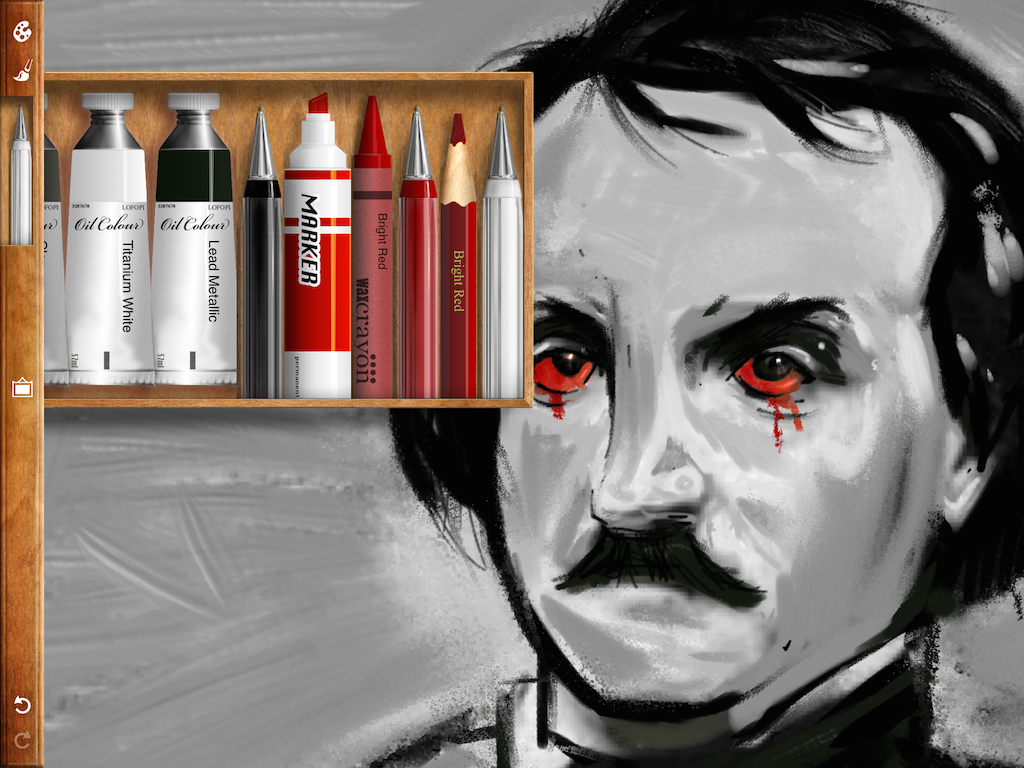
The marker pens have a really good feel, and it's much like using a set of Letratone Trias, but there's little control over the angle of the pen, which is a pain with a chisel tip. The paint feels painty, and splodges well, and I actually felt a bit artistic, smearing highlights and building up the paint. Unfortunately the eraser is like using a mad spatter brush, there's no control, and in the end it turns out easier to just overpaint. Perhaps these issues are addressed in the artset pro upgrade?


Likewise the tools for smudging and the sponge seem to produce the effect of using an airbrush with a spatter cap... weird, though I found the "water" effect made a really nasty "true detective" style background.
The worst thing about the app is the way it handles memory- midway through painting this pic I got an out of memory warning, and checking usage I found Artset was using 866Mb, as I only have 3 pics in the gallery, and it's base usage is 114Mb I can only assume it stores huge amounts of detail, good if you need to undo a fair bit, but awful if it chokes the device. Once you step back to the gallery and reopen the image it is essentially flattened, and all undo history is lost, and the memory used drops off.

Anyway, here's my effort for today, it's Edgar Allen Poe, originally it had a raven pecking at his face, but it looked like some kind of stuffed toy, so I overpainted it.


Monday, 22 June 2015

30 drawing apps in 30 days day day 13 inkflow

@mecurdy uses inkflow and Art Set, so I thought I'd best have a try with them.

Inkflow is basic, more basic than the back to basics version of memopad I tried yesterday, in fact it's so basic I reckon I could write a similar app.
In fact I might well have a bash at just that over the Summer, I have the code from the old Becta Interactive Whiteboard Common File Format Viewer app on my Github profile...
Anyway I've already mentioned that I'm actually a big fan of basic apps, that do what you want, and no more, and I think inkflow is nearly there, but maybe misses out to other bare bones offerings  like penultimate, or notability in a few areas.

Inkflow has a pen,
it's a black pen with a fixed width nib, and a lasso tool to select and move bits of the sketch...or delete them instead of an eraser.
Accidentally I also found a long press whilst in the lasso tool provides a function to add text and images or select all of the image


Actually the ability to grab part of the sketch and move it is really quite neat, and offers something many of the other tools don't have.
There's also an undo, and redo tool... and hidden at the bottom there's a drag up palm rest so you can plop your meaty fist onto the screen without it registering.
And that's it... there are additional bits and bobs you can get in the Pro version if you cough up £5.99 which seems a bit steep for a few brushes and colour...
I also found the app gets a bit laggy as the image becomes more complex, which makes me wonder how it stores the data, and how it would cope with all the additional colour data... I need to have a read of the iOS API docs again.

Today's challenge is 'medieval'.


Sunday, 21 June 2015

30 drawing apps in 30 days day 12 Tayasui memopad

In its default setup Tayasui memopad looks like a no frills version of Tayasui's sketches app, a pen a pencil a brush and an eraser each with three nib sizes.
There's a line of basic colours to pick, and that's about it.
But actually it's a little more sophisticated if you invest £1.99 for the extras, or test drive them with the useful 'Try 1HR" feature :
-press and hold the colour picker and there a handy colour change tool,
-additional brushes give pastel shades, and roller and a fill tool,
-a greater number of export options allow you to share the results.


No layers as such, but there is the ability to import a photo and then sketch over it. I found this essential in combination with the auto save as a restore function,  essential because a two finger up swipe moves to a new page... and if you do it again you lose the image you were working on.
Luckily the autosave means you can imort the picture back in as if it were a photo...
This is the only app so far that has lost my work part way through... And it was a bit irritating to be honest.

Serendipitously one of the brushes makes a nice snow effect, if you happen to be drawing an Ice planet... 

Draw a walker was the challenge.


Red five standing by.

Saturday, 20 June 2015

30 drawing apps in 30 days day 11 Adobe Photoshop Sketch

Nearly didn't spot this amongst all the other Adobe offerings, there are so many, and the titles make it tricky to know which does what.
Adobe Photoshop Sketch should in theory be just the app I'm looking for, but as with many apps, for some mysterious reason it doesn't include some of the functionality I want, in this case a functional layers tool.
The layers tool allows a picture to be imported to be traced over, but it doesn't seem to want to allow further layers to be positioned over the main layer. I usually use a layer for tone, or highlights, or colouring in...
The layer tool here provides a slider to fade between a background image, and the drawing layer. Images can be imported into the layer from the iPad, or from some Adobe market place.
I imported gradient background because I couldn't find a gradient tool... or a fill tool :(

The toolset consists of a pencil, pen, brush, marker and Custom brush and an eraser tool. Each of the tools has a slider in a pop up menu to control tip size and opacity which works well, but not as fluidly as the Autodesk tip controller. Unfortunately the eraser tool seems to be less configurable, and has a sort of wooly edge.
There's the usual Adobe template shape ruler thing, which presumably works well with the Adobe active stylus and slide puck.


Images can be saved to the photo album, or exported to illustrator and photoshop. Images are organised into 'Projects' which are like clusters of sketches and can be shared using the Adobe Behance portfolio offering.

Anyway, today's challenge was to draw a hammer, so I've done a sketch of Thor...


...One more thing... of all the drawing apps I've used so far this one has really hammered the battery on the iPad. It used 42% of the charge over the period of the drawing, and although I probably spent a little more time on this sketch, I don't think it equates to such a huge battery drain.


Friday, 19 June 2015

30 drawing apps in 30 days day 10 Notability

Notability is definately more of a note taking app than true drawing app... but it's really quite similar to Paper by 53 and the other notebook style apps.
Very limited set of tools, a pen with a number of fixed width nibs, a highlighter that works in the same colour multiplying way with successive layers as many of the brush tools elsewhere.
The eraser is a bit of a beast in that it deletes the whole "thing" that you tap... I'm guessing each thing is a vector object, and instead of altering it just removes it. There is a clipboard tool which allows an arae to be selected using a lasso tool.
You can zoom in to add some detail, but there are no layers.
Export is not in image format rather as pdf, although you can send a sort of screen shot to twitter.


On the plus side it is super intuitive and you get to grips with it in about 2 minutes, I've used it to capture notes on my course, when we were doing concept diagrams.


Anyway, sketch for the day is draw a network... 


Thursday, 18 June 2015

30 drawing apps in 30 days day 9 Adobe Illustrator Draw

Adobe Illustrator Draw is a polished app, part of the creative cloud offering.
It has layers, it zooms, and it has the useful template tool for outlining. The pens size and opacity are set using a drag left or right, and up and down.


...and that's about it simple and accurate.
The undo is a two fingered left swipe which seems to work without issue. The positioning of the shape tool is one of the only tricky things, especially when you try to position the shape template near the edge of the page.

Export to illustrator and photoshop, save to the photo library, or all manner of other places... and because it's linked to creative cloud there seems to be 2Gb of online storage available, and the ablity to share your work with a community using the Adobe Behance portfolio tool. I'vve shared my pic and will follow up on the community and Behance tool some time later.

Sketch today was draw a school... so it's a school of fish.


Wednesday, 17 June 2015

30 drawing apps in 30 days day 8 Adobe Illustrator Line

This app is by far the most professional and considered of all I've used so far, as one might expect from Adobe who have been doing this sort of thing for a while now. This app comes as part of bewwildering panoply of apps under the creative cloud banner, and looks like its been designed for the graphics pro on the move... offering an alternative to coughing for a wacom companion tablet, or one of the increasingly attractive Windows touch surface touch things, or whatever they're called.
The Adobe Creative Cloud for mobile approach seems to be to divide the functionality into individual apps, so there's an app that just builds brushes, there's this version of illustrator for folk who want some perspectives, supported by a wealth of grids, and viewing tools, and the neat template/ruler thing, which allows you to pick shapes to use as pen guides.
The app is designed to be used with the adobe stylus (and slide guide) which I think is there as a palm rest? further esearch required.


Zoom works reasonably well, though as per usual sometimes it thinks you are trying to draw a line, leading to additional undoing...the two finger left swipe to undo does work well, and didn't miss a beat.
The lack of fill tool is a bit of a pain, as is the lack of layers... there's a sort of layer thing, but it is really there to allow photos to be used for tracing, it has a level of opacity, but doesn't allow say a background tone to be layed down with a marker, and then have something drawn over the top... unless to draw your background elsewhere.
It could well be that the workflow is to do some tasks in the sister app "Adobe Illustrator Draw".. I'll try that tomorrow.

Sketch challenge for the day was  draw a computer...